Repository navigation
Home
Chemweave is a free program for drawing chemical structures and putting them to work: in reaction schemes, presentations, spreadsheets, documents and graphics. These pages explain how to use it. They are written for chemists, not programmers.
- Getting started: install the program (Windows, macOS, Linux), find your way around the window, open your ChemDraw files, save.
- Keyboard and mouse: the keyboard shortcuts of the Canvas and of the other modes, how to change them, what Shift, Ctrl and Alt do while you drag, and what each mouse pointer means.
| Mode | What it is for | Saves as | |
|---|---|---|---|
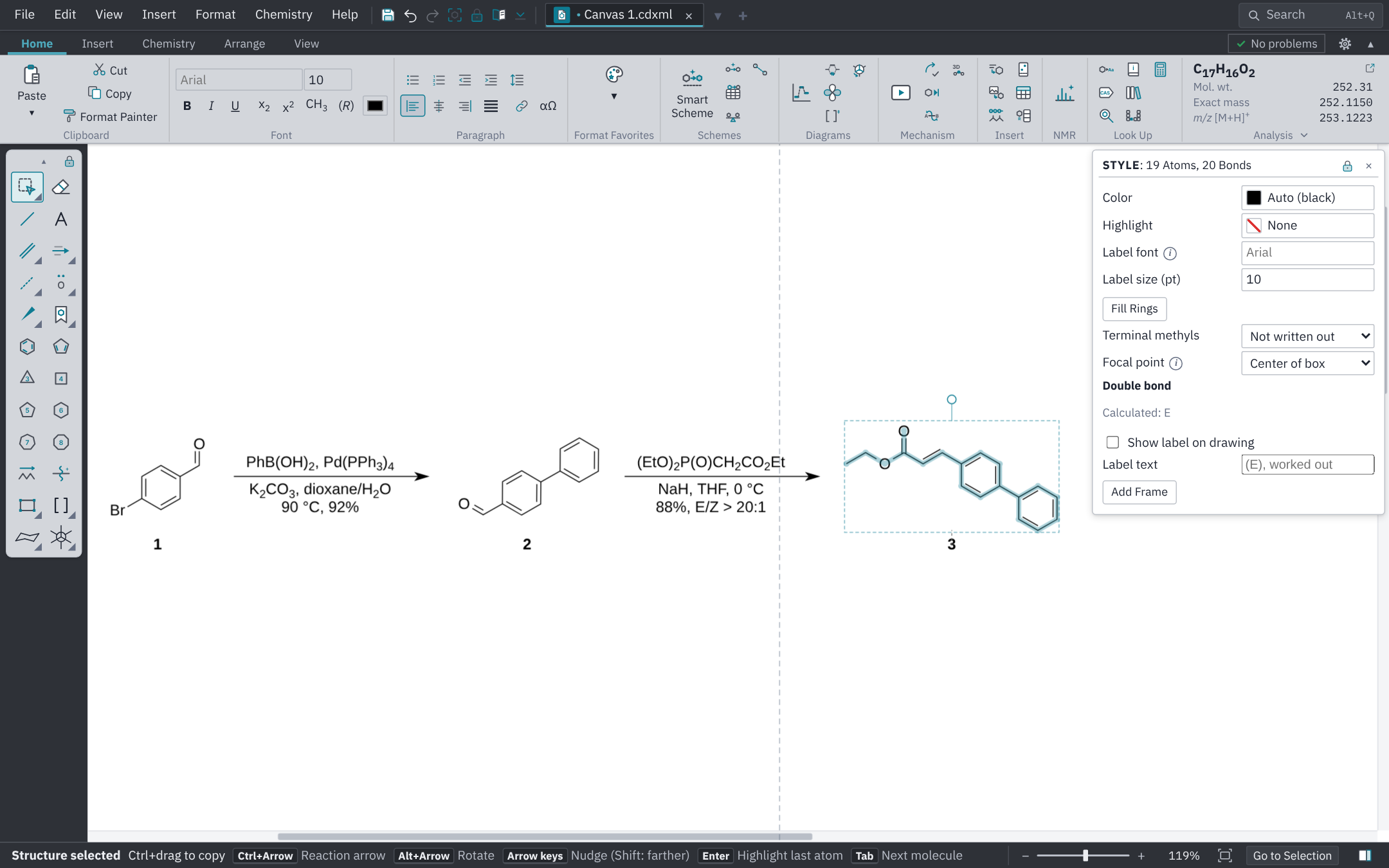 |
Canvas (Chemistry) | Structures and reaction schemes, drawn with ChemDraw's tools and keyboard shortcuts, with formula, masses and stereo worked out as you draw |
.cdxml (ChemDraw) |
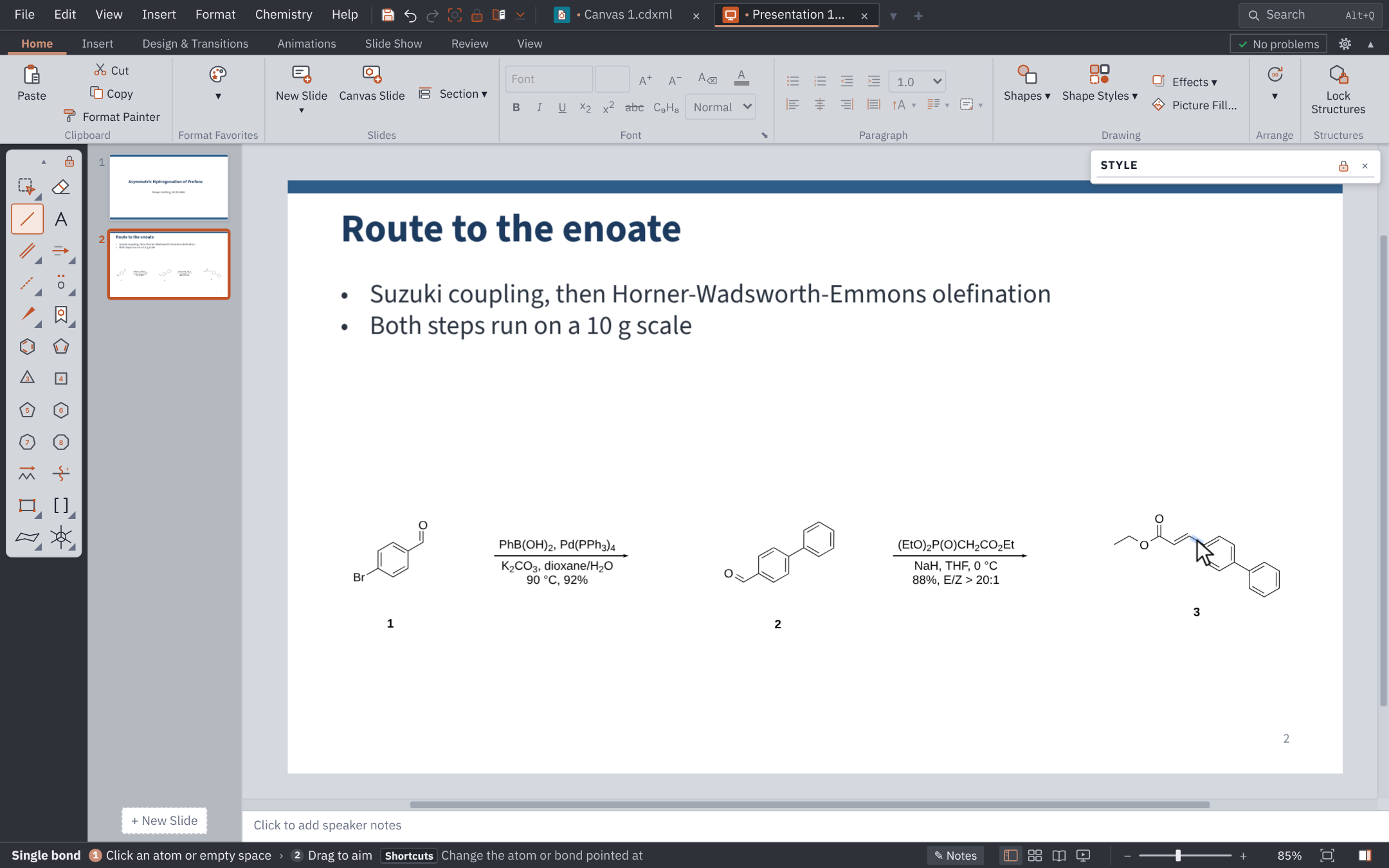 |
Presentation (Slideshow) | Talks and group meetings: layouts, templates, transitions, animations, presenter view |
.pptx (PowerPoint) |
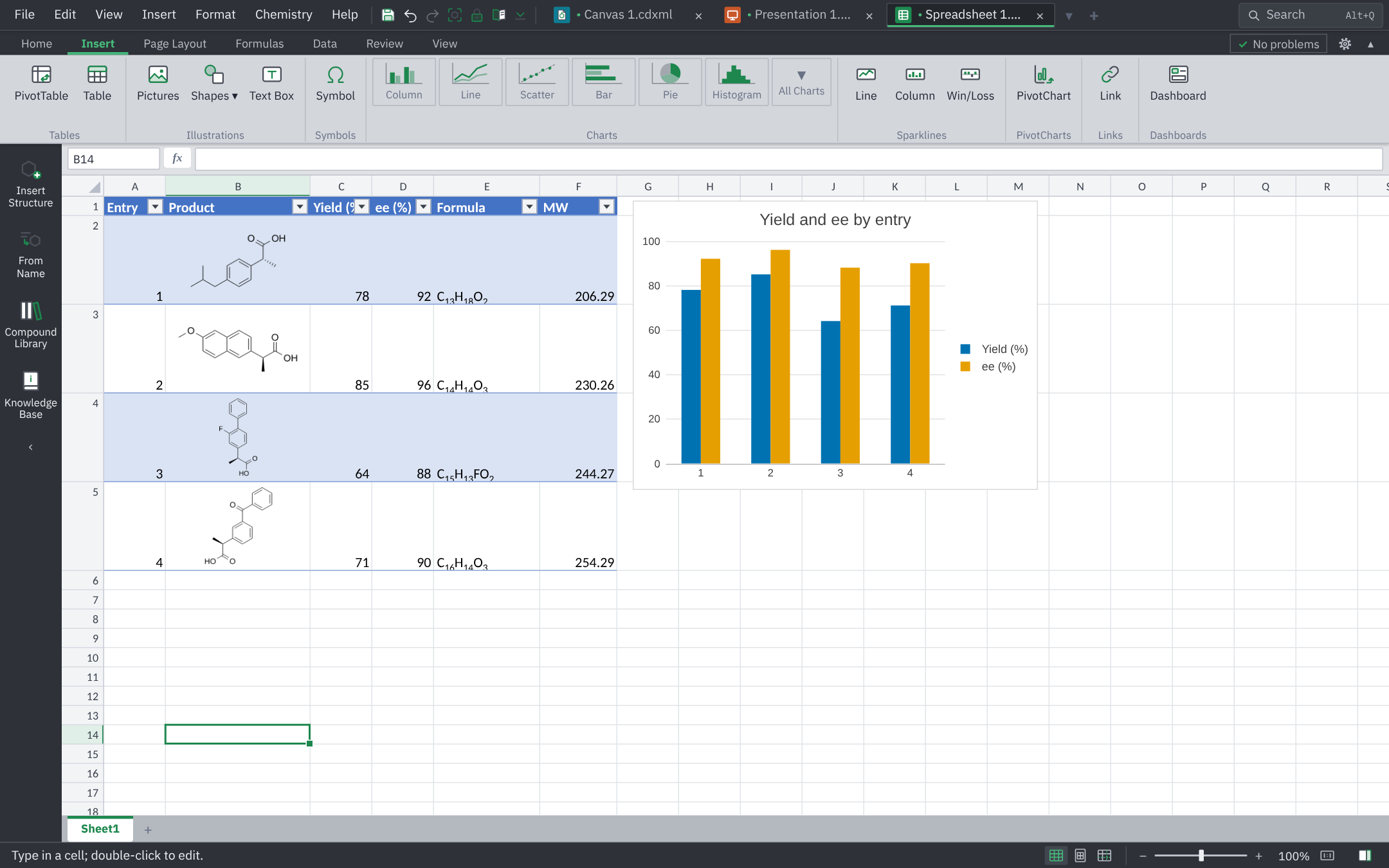 |
Spreadsheet (Tables, Charts, and Dashboards) | Tables of compounds: structures in cells, formula and mass columns, charts, isotope patterns, dashboards |
.xlsx (Excel) |
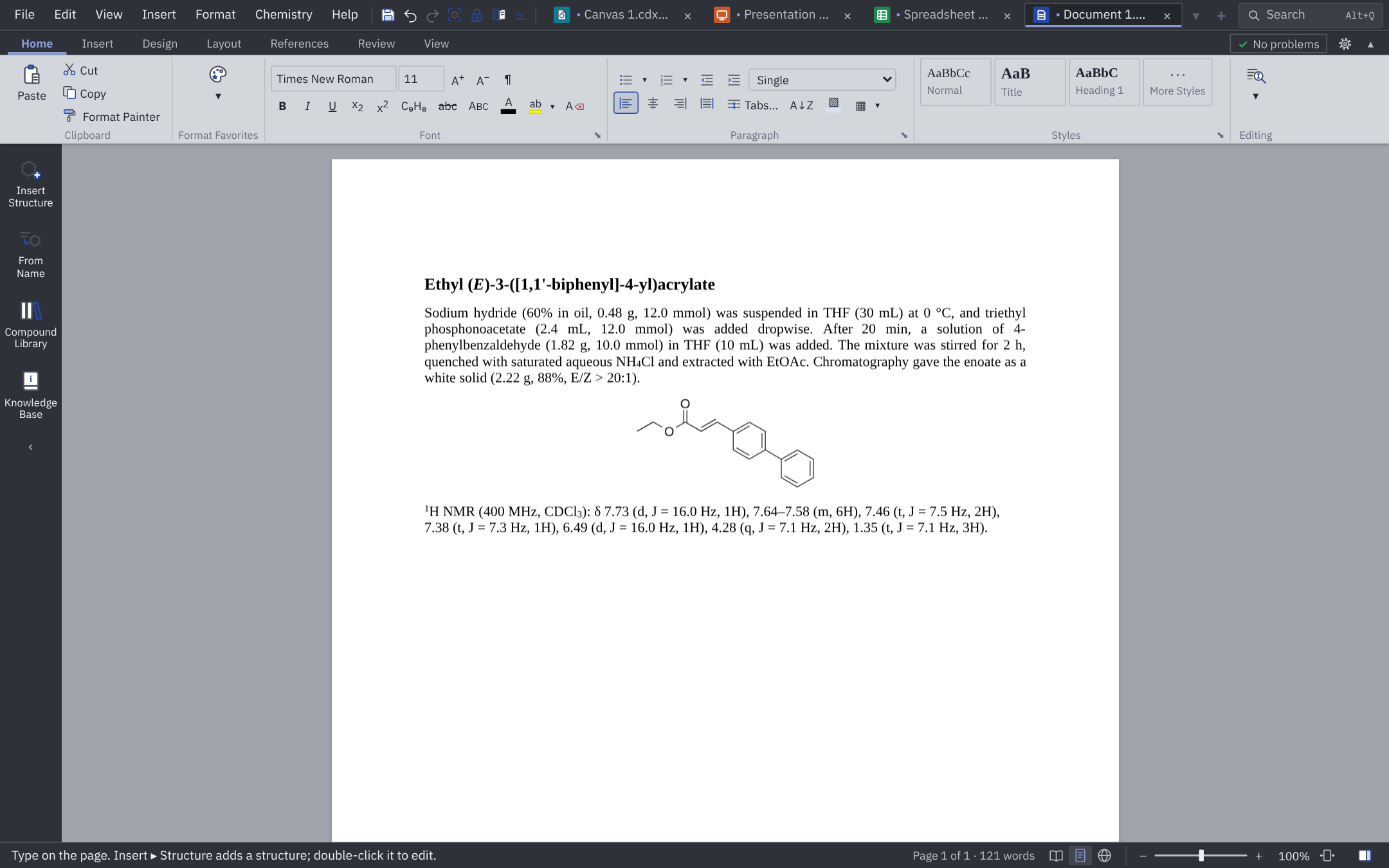 |
Document (Text document) | Reports, theses and experimentals: styles, structures in the text, captions, references, tracked changes, equations |
.docx (Word) |
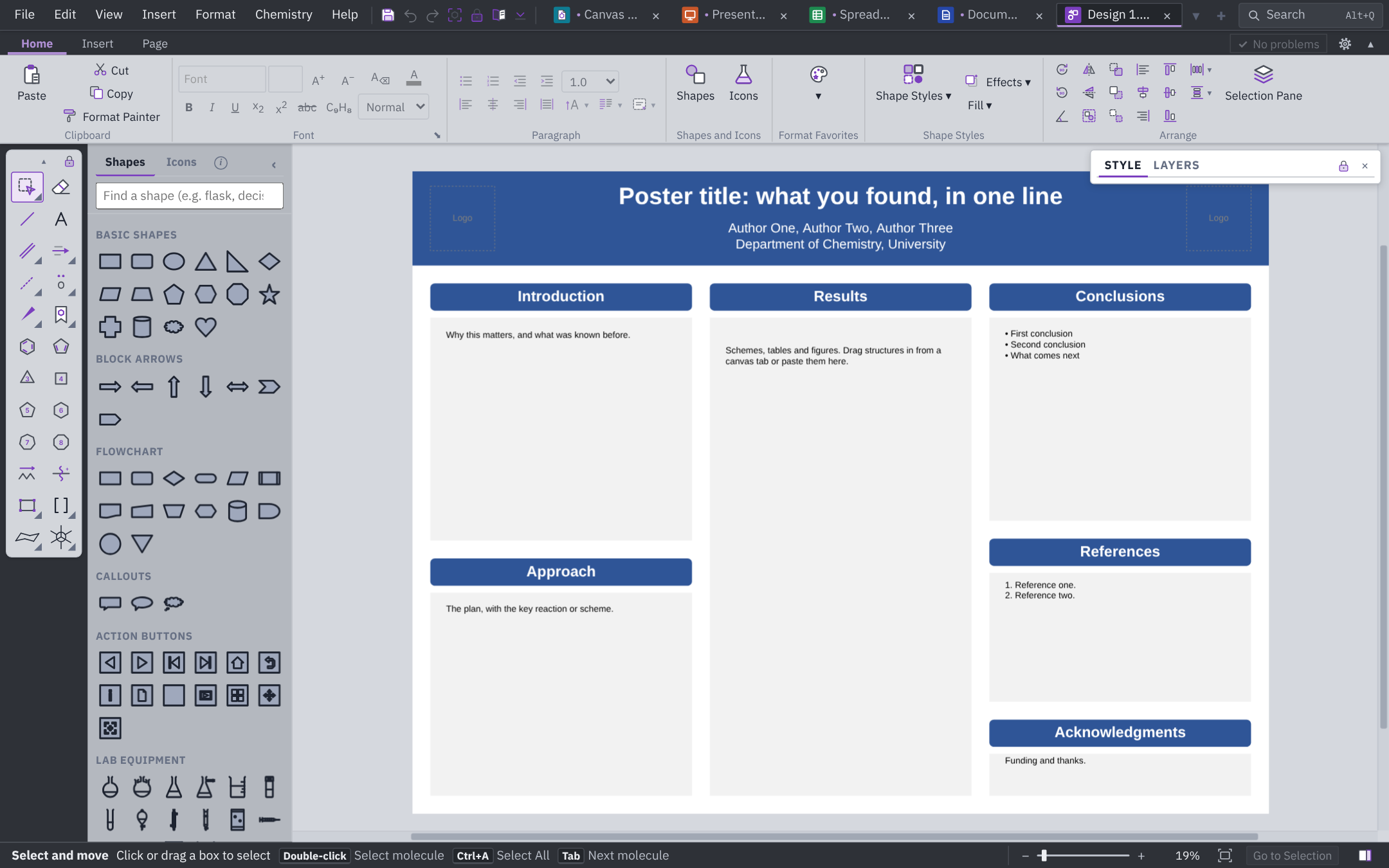 |
Design (Posters, Graphical abstracts, Figures) | TOC graphics, graphical abstracts, posters and flowcharts, with a shape library that includes lab glassware, and about 7,000 icons with lab and hazard signs |
.pptx (one page) |
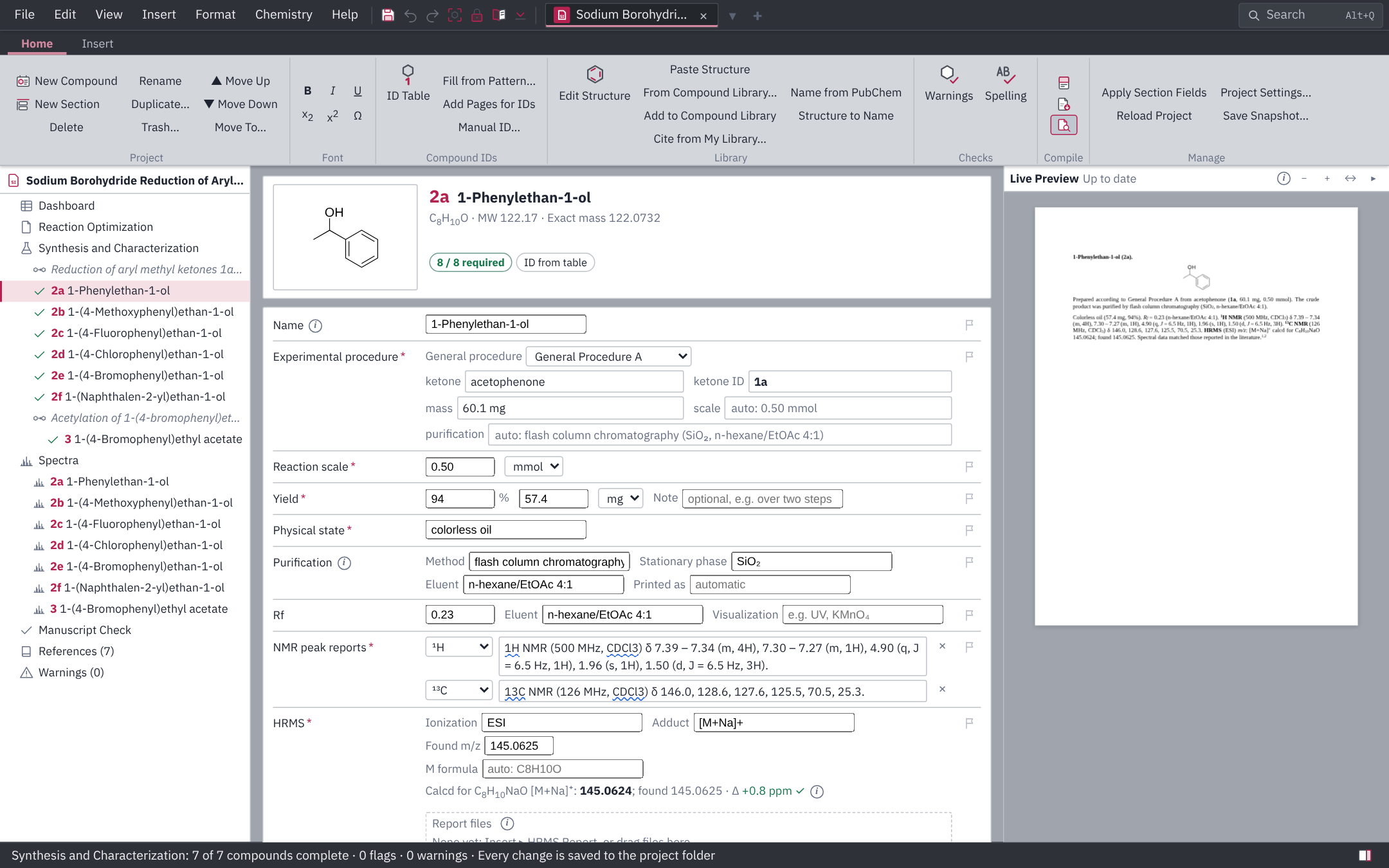 |
SI Project (Supporting Information) | The Supporting Information of a paper: compounds with their procedures, NMR, HRMS and spectra, checked as you enter them and compiled as a document or PDF. Desktop app only | a .chemsi project file |
Structures stay editable in every kind of file: double-click one on a slide, in a cell or in a document to change it with the drawing tools.
- Your libraries and Find Structure in Files: the reference library (collections, tags, PDFs, PubMed, Zotero sync) and the compound library shared by every file, kept on this computer or in a shared folder, and searching a folder of files for a structure.
- Importing an SI with an AI assistant: instructions to give your AI so it can move an existing Supporting Information and its data into an SI project.
- Files and sharing: every file type it opens and saves, copying to and from ChemDraw, Word and PowerPoint, Split Screen, workspaces, AutoSave, recovery after a crash, Version History, shared folders, printing and fonts.
- Troubleshooting: the program won't install or start, a damaged settings file, work that seems lost, where settings and recovery copies are kept.
- Feedback, problems and ideas: how to send a feature request or report a problem from inside the program (Help ▸ Send Feedback…).
- For developers: running it from the source code, how releases are made, and where things are in the code.
This page is made from docs/README.md in the repository. To change it, edit that file: the wiki is rebuilt from it after each update, which replaces edits made here.